Monday, March 15, 2010

USE YOUR IPOD AS A PORTABLE HARD DISK

You can use your iPod as a drive (hard drive or flash drive depending on your iPod) to store and transfer data files on (also known as disk mode).

Tip: To sync music files to iPod, use iTunes. You will not be able to play songs on your iPod that you transferred to your iPod using Finder on a Mac or using My Computer/Computer or an Explorer window on a PC. If you transfer songs to your iPod using those methods, your iPod will see them as data.

Products Affected

iTunes 7 for Mac, iTunes 7 for Windows, iPod nano, iPod shuffle, iPod mini, iPod, iTunes 8 for Windows, iTunes 8 for Mac

Using iPod as a drive

  1. Connect iPod to your computer.
  2. Open iTunes if it doesn't automatically open.
  3. Select the iPod icon in the Source pane.
  4. Click the Summary tab.
  5. Select "Enable disk use" or "Manually manage music and videos." Either one will allow you to use iPod as a drive. If you select "Manually manage music and videos," iTunes won't automatically update iPod with the iTunes library. If you want iTunes to automatically update your iPod, select "Enable disk use" instead.

    iTunes window, enable disk use

  6. The iPod disk icon appears on the desktop and in Finder windows, and in My Computer/Computer in Windows. Double-click the icon and drag files to or from iPod's window to copy them.
  7. Make sure to eject iPod before disconnecting it from your computer. Tip: The iPod display will say "Do Not Disconnect" when disk use is enabled (iPod shuffle's status light will continue to blink orange until after it is ejected). These are reminders for you to eject iPod first.


Copying songs from your iPod to your computer

The iTunes library on your computer holds all the media (music, videos, podcasts, etc.) you've encoded from your CD collection or purchased from the iTunes Store. With default settings, iTunes automatically copies the media in your library to your iPod. When you use your iPod as a hard disk, you can't see the media iTunes copies to your iPod in the Finder or My Computer. This is normal. Using the Finder or My Computer, you can't copy these media files from your iPod back to iTunes or to any other computer. The synchronization between your iPod and your computer is one way: from iTunes to iPod. The exception is the transfer Purchases feature, which allows you to restore purchased iTunes content to your computer from your iPod.

If you've erased the iTunes library on your computer, there's no way to use the Finder or My Computer/Computer to copy the media from your iPod to reconstitute the library on your computer. One solution is to encode the songs from your CD collection again, then sync your new library with iPod. If you purchased content from the iTunes Store and didn't back them up, there's no way to download them again. You'll have to buy new copies of the content. This is why backing up your media files in iTunes is important. music to another computer.

Troubleshooting

If you plan to connect iPod to another computer, make sure not to sync it with the iTunes library on the other computer. This will only happen if you selected the Enable Disk Use option instead of Manually Manage Music and Videos.

"iPod synced with another computer..."

Note: If you take your iPod shuffle (or an iPod you selected Enable Disk Use for) to another computer, you will need to eject the iPod from My Computer/Computer or a Finder window since it will not appear in iTunes.

Right-click (or Control-click on Mac) on the iPod and choose Eject from the shortcut menu.

If you use your iPod as a disk with a Windows PC, keep in mind that the FAT32 file system can only accommodate files that are smaller than 4 gigabytes. No matter how much free space there is on your iPod, you can't copy files that are larger than that.

HOW TO ACTIVATE WINDOWS 7 WITHOUT A KEY

Windows 7 RTM Activation is hacked for key-less activation, this time it doesn’t require an OEM key at all, and instead bypasses the verification DLL completely. Mydigitalife posted a complete how to on this hack, RemoveWAT or Chew-WGA “Bypass Activate” Windows 7 and Server 2008 R2 Forever (Loader Alternative to Remove & Disable Activation Technologies). This crack method is an alternative to BIOS loader and OEMBIOS mod, which effectively bypass the activation requirement of the installed Windows7 system, by removing and disabling Windows Activation Technologies (WAT).

The new hack bypass the sppcompai.dll, and even deactivates all the reminder pop-ups that would otherwise ask you to activate indefinitely. By so nullifying sppcompai.dll disables all activation and licensing related functions. According to MDL the crack is possible probably due to leniency allowed on the part of Microsoft on activation mechanism to avoid getting too many false-positive or complaint on activation error. In the mean time hacker teams released their workarounds for example RemoveWAT and Chew-WGA are available in the wild.

RemoveWAT : RemoveWAT, developed by Hazar and nononsence, it is a tiny utility to remove WAT (Windows Activation Technologies) completely from the OS, whilst still retaining genuine status and receiving all updates (optional as well). You can also pass the genuine check in things like Windows Defender. RemoveWAT supports both 32-bit (x86) and 64-bit (x64) and all editions of Windows 7 and Windows Server 2008 R2.

removewat

USING NLITE TO CREATE A CUSTOM WINDOWS OS CD

You will need

Here is How to do that

First of all download the above mentioned softwares,collect your drivers and get as much as hot-fixes and add-ons which you want to integrate in your OS CD.

Run Nlite and insert your XP CD. Choose your language and click Next.
Run Nlite and  Choose your language

Choose your drive and make a new folder on your hard disk. Choose that folder and Nlite will copy all your XP cd there.
Choose your folder for XP

Choose your options about integrations and add-ons and user configuration and click next.

Choose your options and click next.

Select your service pack and click next. Nlite will integrate service pack into your XP.

Choose location of your service pack and  click next

Choose the hotfixes to be applied on your windows.

Choose the  hotfixes to be applied on your windows.

Choose the components you want to remove – like MSN messenger and outlook express 6 (I don't think any body uses them).

Remove  unnecessary components

Now finally configure the windows and the miscellaneous options like the background and boot screen and various configurable options.

configure  miscllaneous options

Now finally apply the speed hacks using the preconfigured options and then hit next.

Apply preconfigured speed hacks

The process of integration will start and after it ends,You will be provided with the configuration screen where you can enter your CD key,User account settings and network settings and then it will create an ISO file for you which you can burn on any CD with Nero or any CD/DVD burner.

GUIDE TO INSTALLING WINDOWS 7 ON A MAC USING BOOTCAMP

hese are instructions on how to install Windows 7 (32 bit or 64 bit) on your Mac using Boot Camp.

Before you begin this tutorial you will need the following:
- Windows 7 Installation DVD
- Mac OS X Installation DVD or Boot Camp 2.1 on CD/DVD

Step One
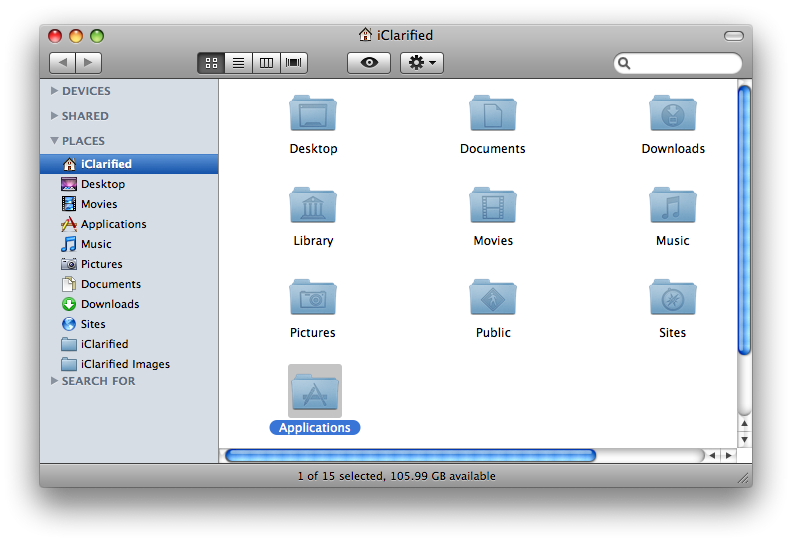
Open a new Finder window by clicking the Finder icon in your dock.


Step Two
Click Applications from the list of places on the left.


Step Three
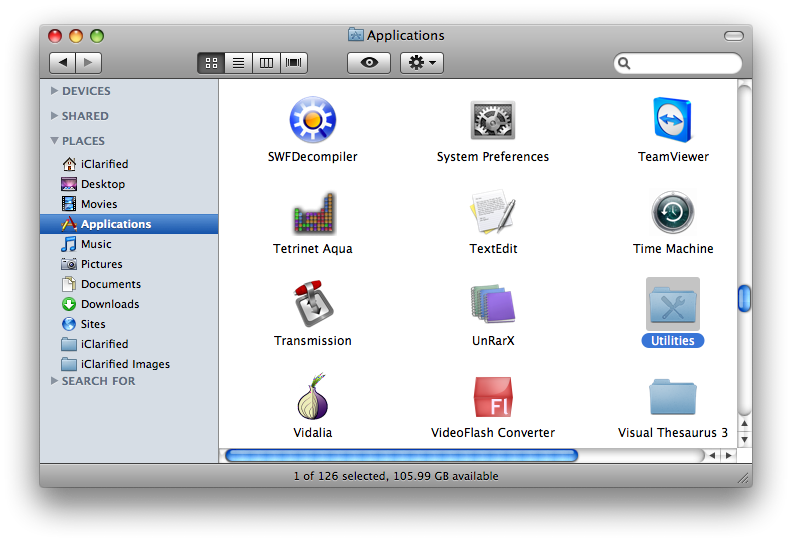
Double click the Utilities folder to access your utility applications.


Step Four
Double click the Boot Camp icon to launch the application.


Step Five
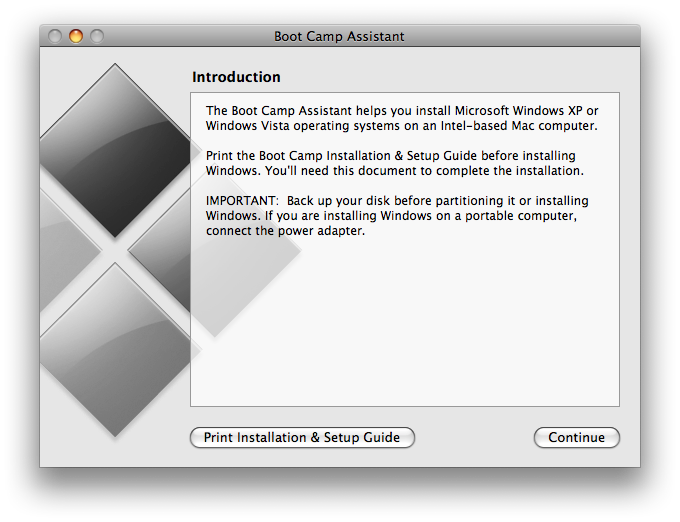
The Boot Camp Assistant will open. Click the Continue button.


Step Six
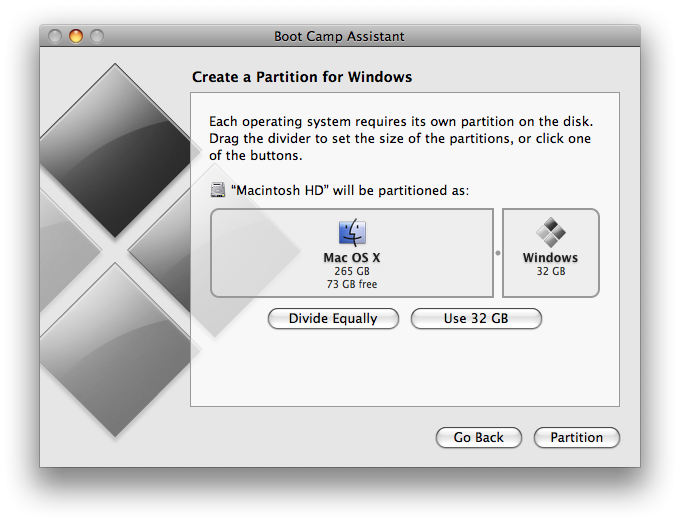
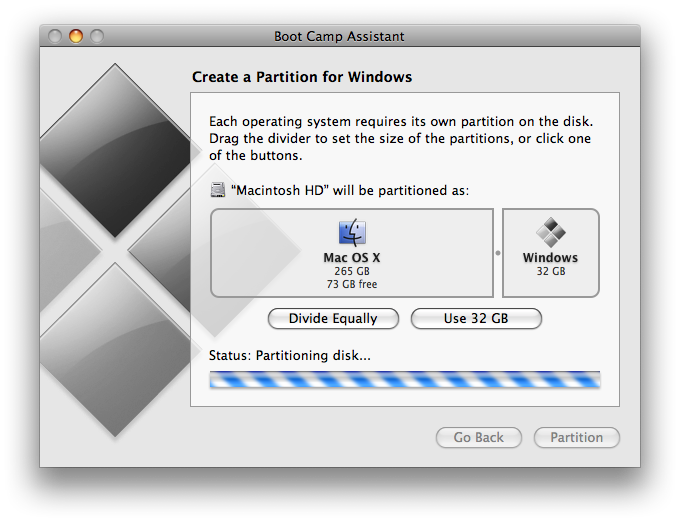
You will now be asked to Create a Partition for Windows. You can drag the divider to set the size of the partitions. Windows 7 needs about 10 GB at very minimum. If you plan to install applications make sure you allow extra space for them. I clicked the Use 32 GB button to assign 32 GB to my Windows 7 partition. When satisfied with the size of your partition click the Partition button.


Boot Camp will now partition your hard disk...


Step Seven
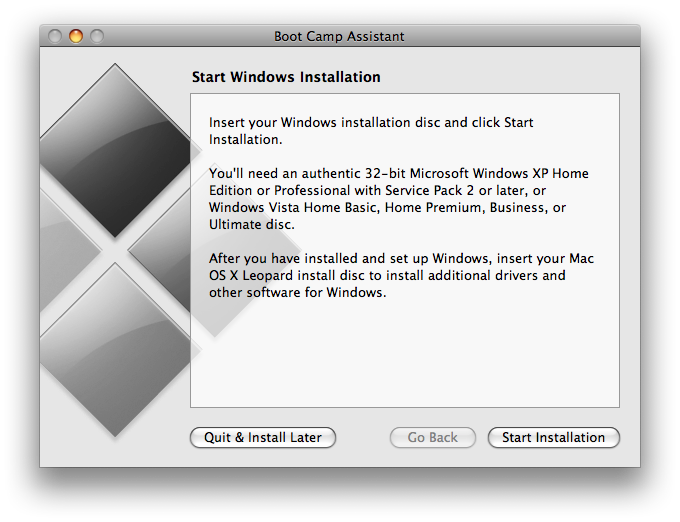
Once your disk has been partitioned you are ready to start the Windows installation. Insert your Windows 7 Installation DVD and click the Start Installation button.


Step Eight
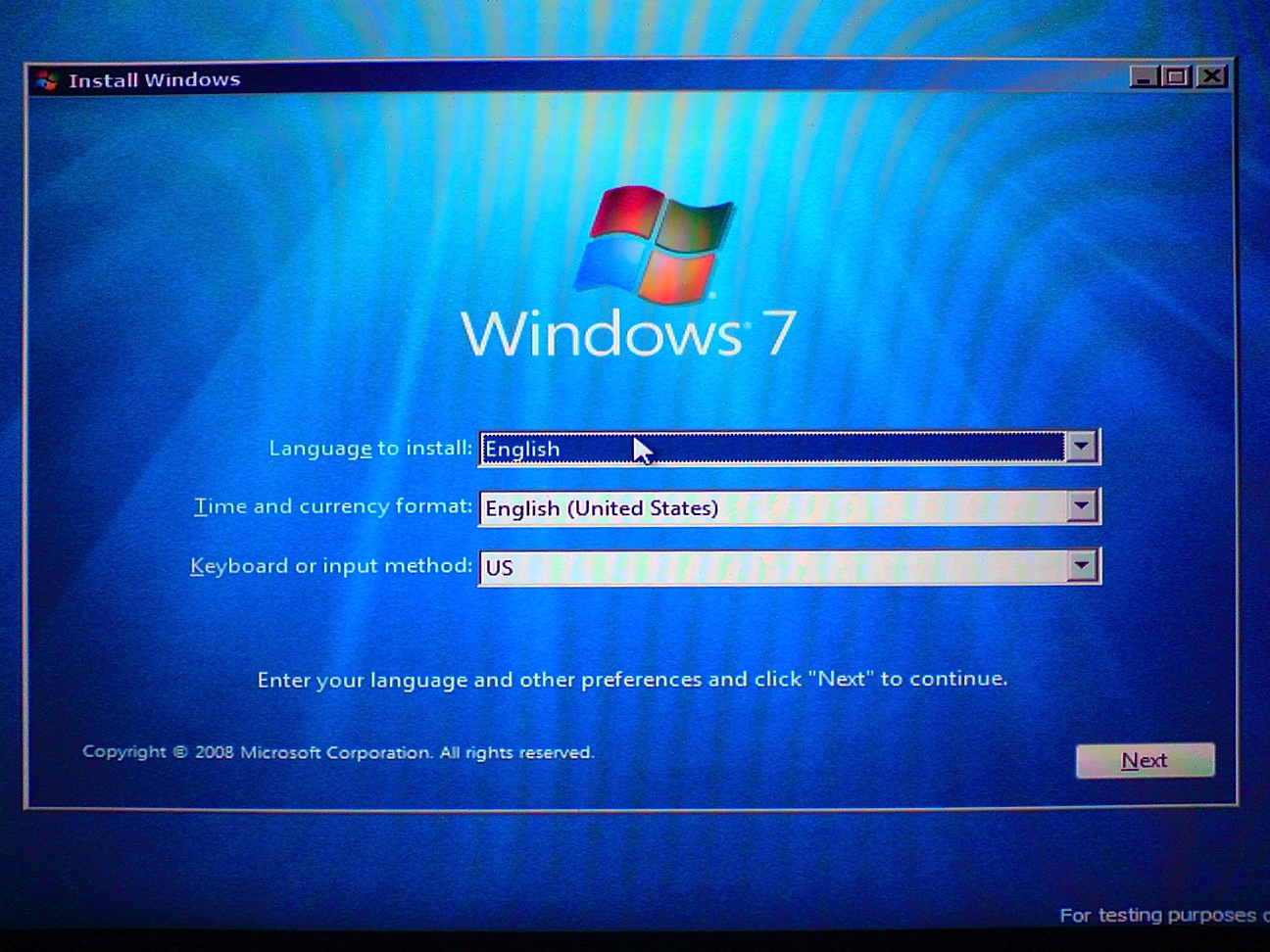
Your computer will now reboot and launch the Windows 7 Setup. Select your language, Time and currency format, and Keyboard or input method from the dropdown boxes, then click the Next button.


Step Nine
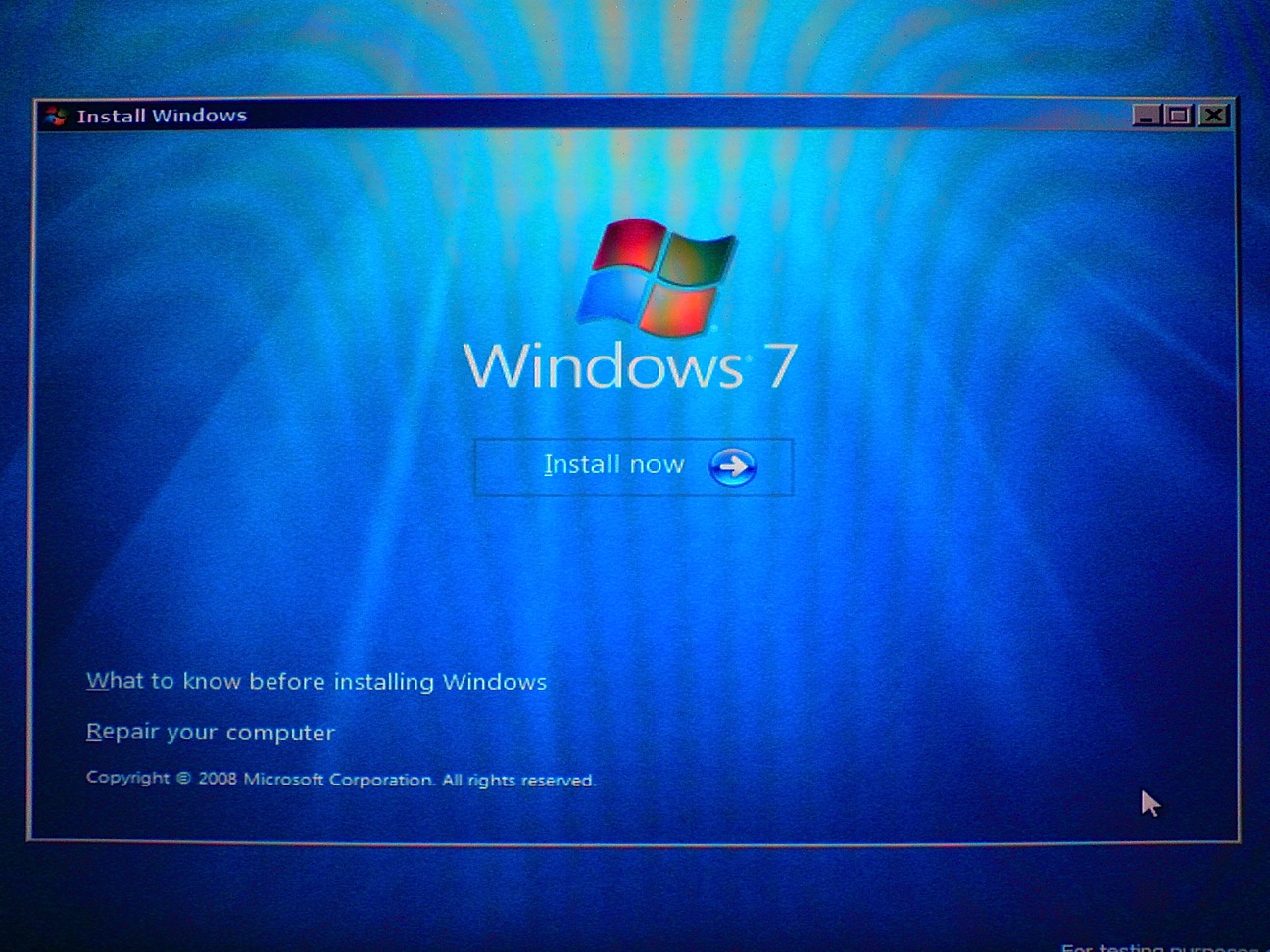
Click the Install now button.


Step Ten
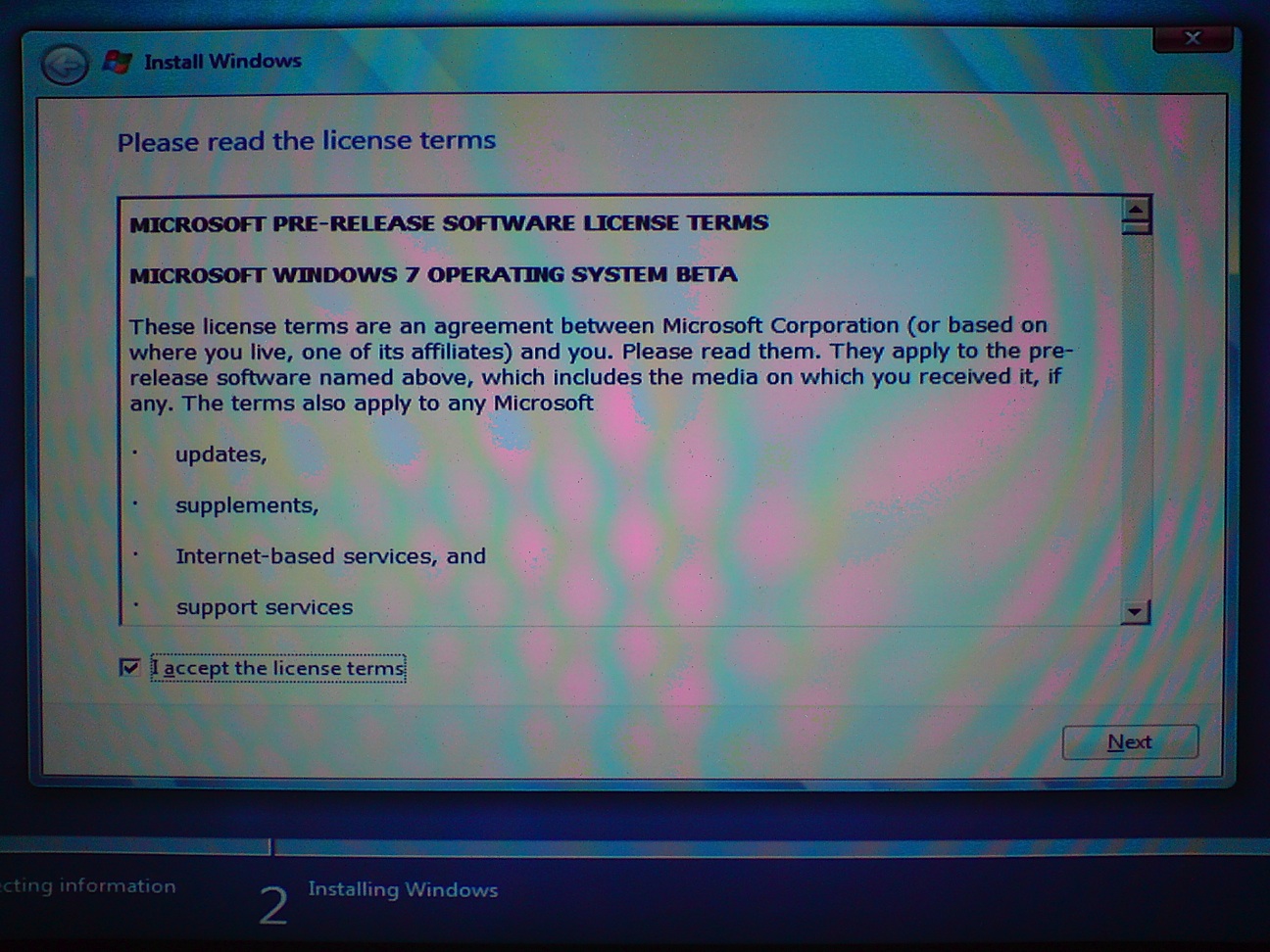
Please read the license terms then check the box to accept the license terms. Click the Next button to continue.


Step Eleven
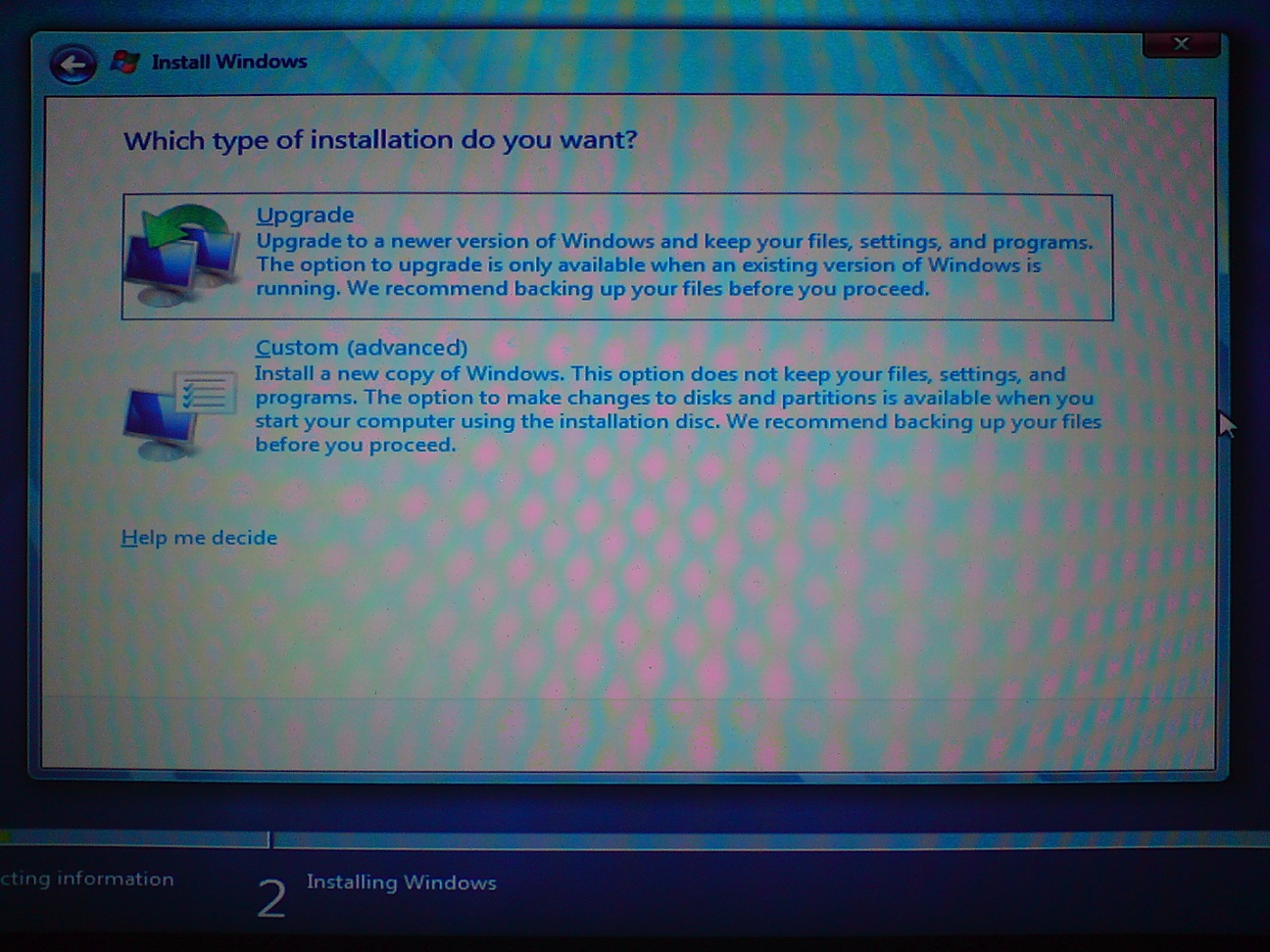
Click to select the Custom (advanced) method of installation.


Step Twelve
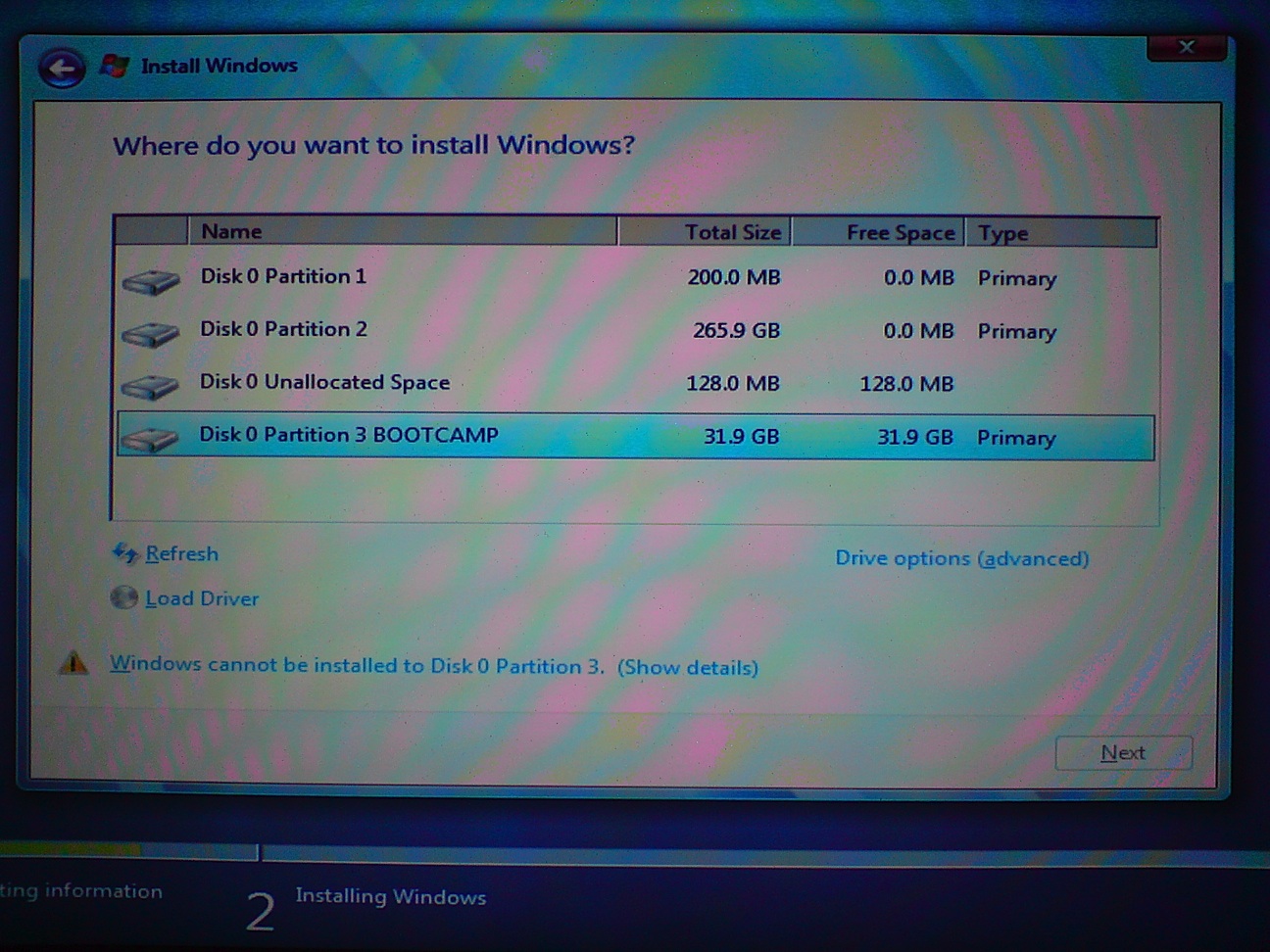
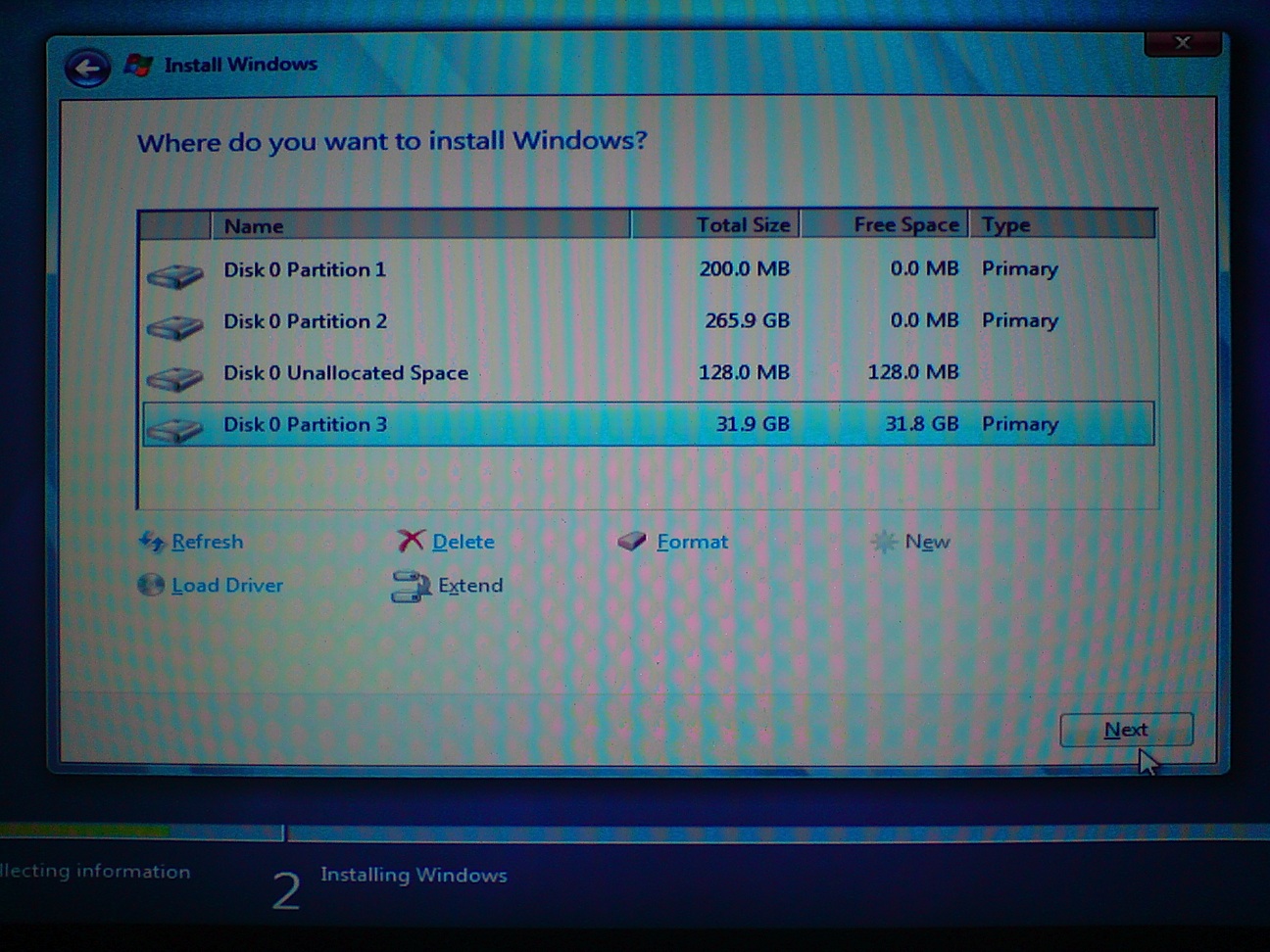
Click to select the Disk Partition labeled BOOTCAMP then click the Drive options (advanced) link below.


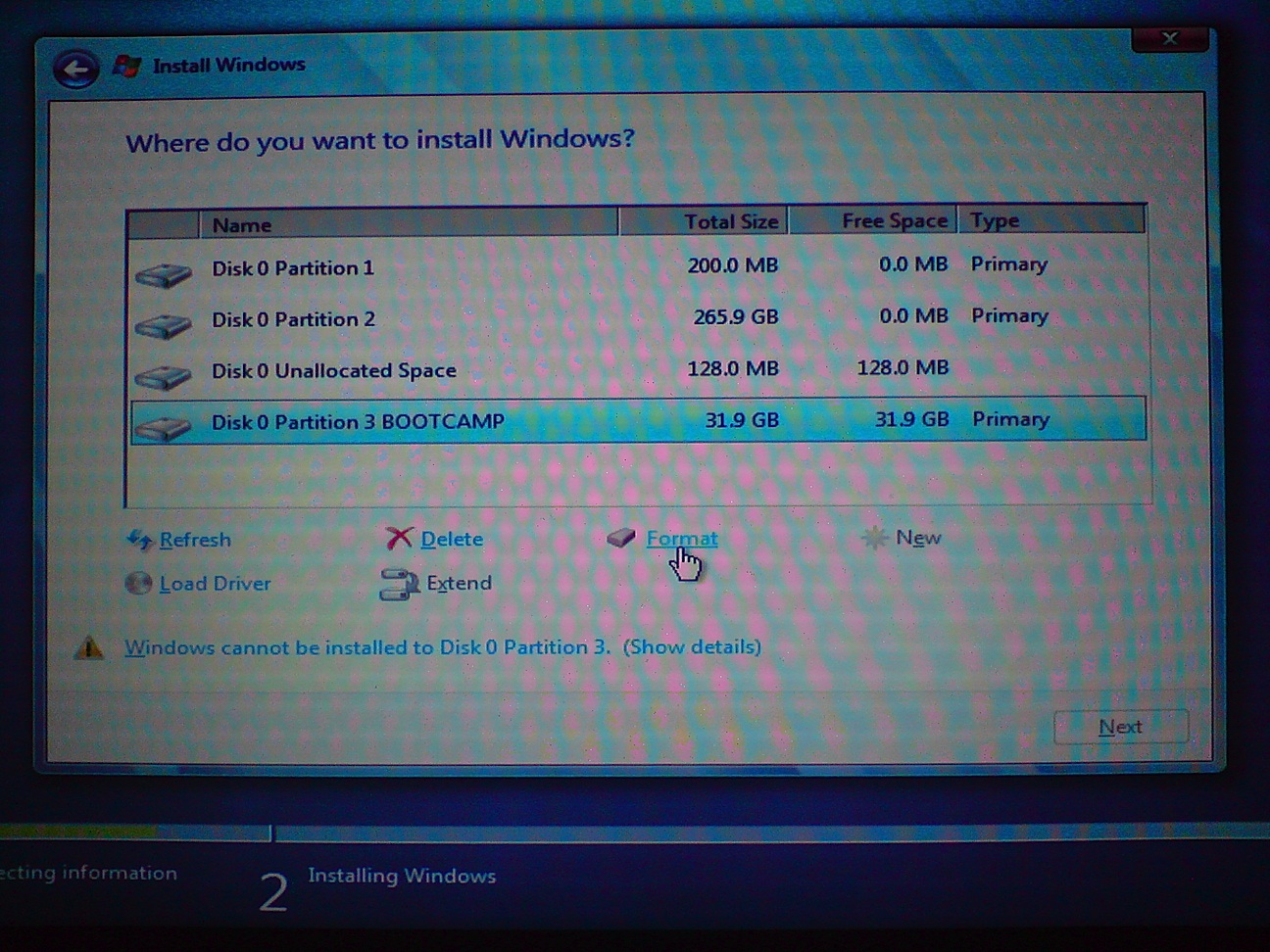
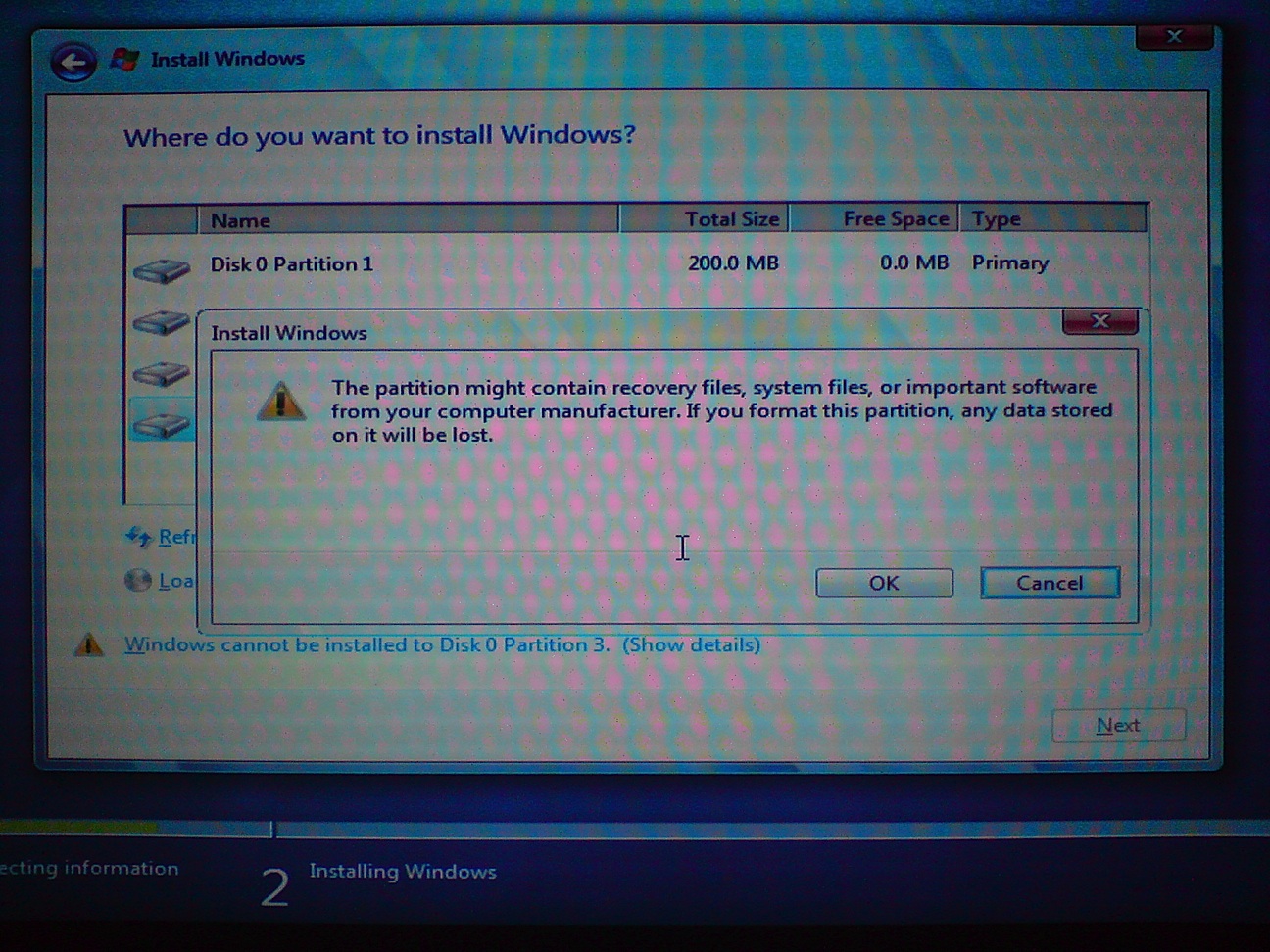
A few different drive options will appear. Making sure the BOOTCAMP partition is highlighted click the Format link.


A popup window will appear warning you that any data stored on the partition will be lost. Click the OK button.


Once the drive has finished formatting you can click the Next button to continue.


Step Thirteen
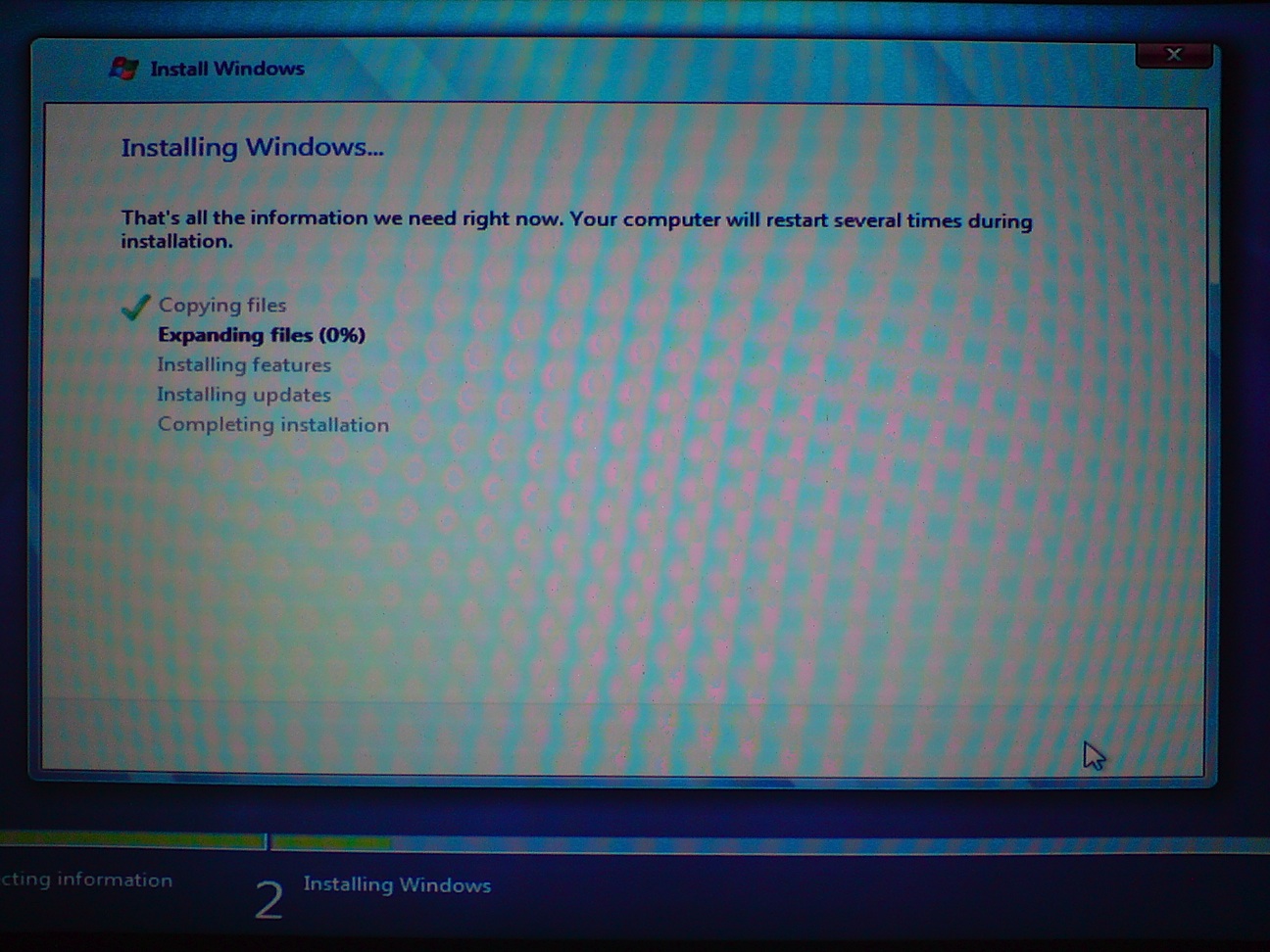
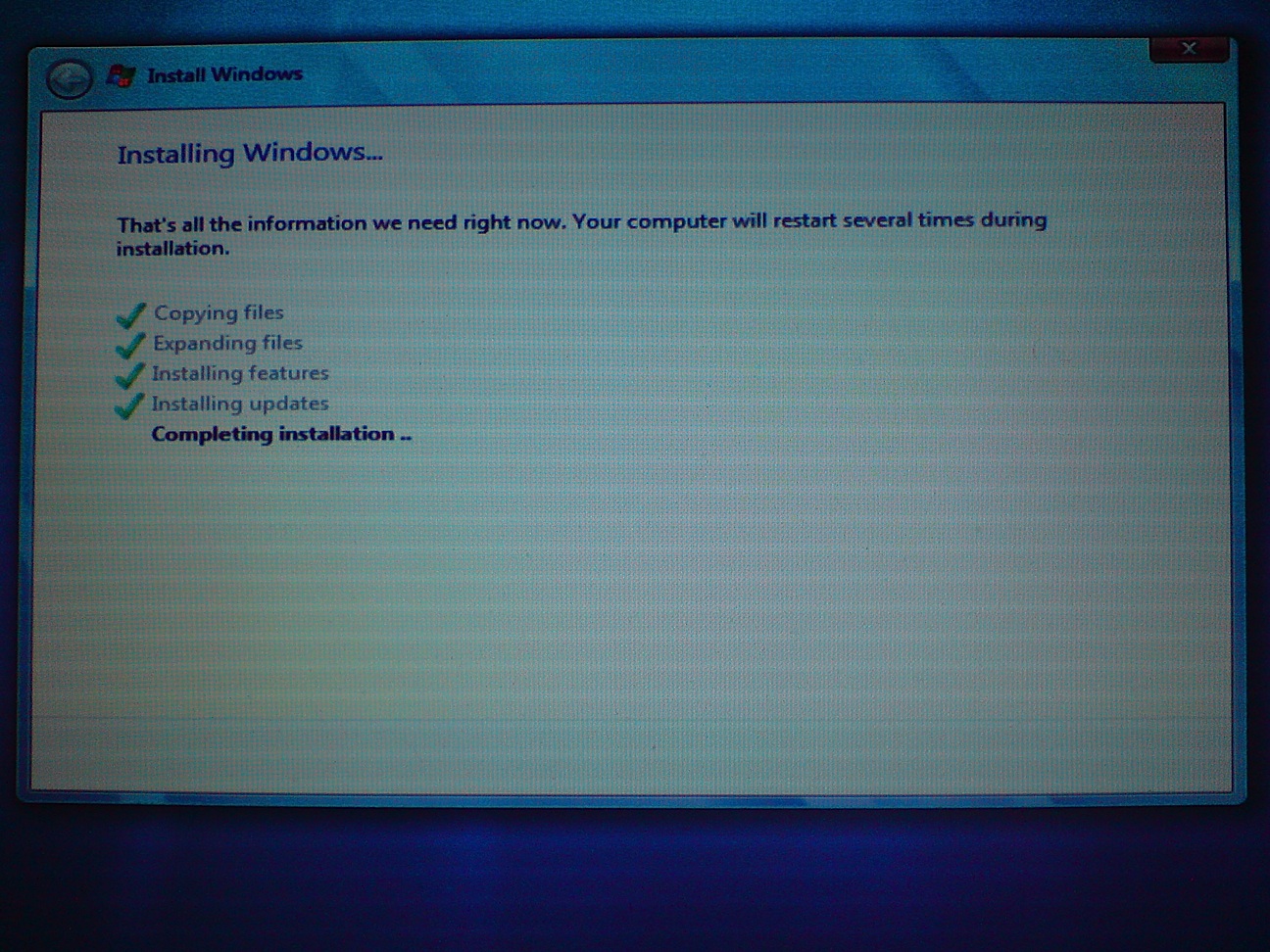
Windows 7 will now begin copying and expanding files. This may take some time. After all the files have been copied and expanded your computer will reboot.


Windows 7 will now complete the installation.


Your computer will then be restarted again.


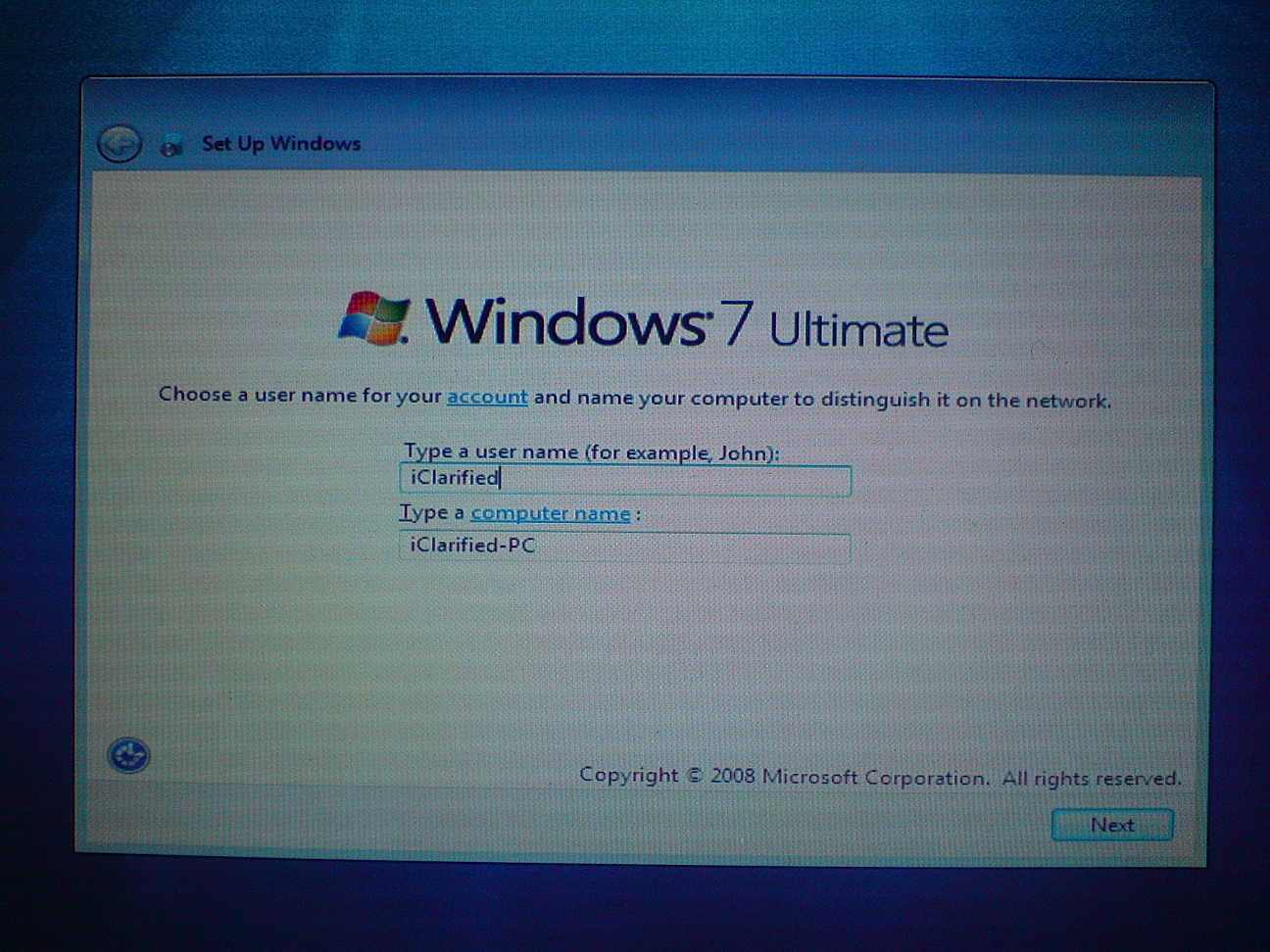
Step Fourteen
You will then be asked to choose a username for your account and name your computer to distinguish it on the network. Please do this then click the Next button to continue.


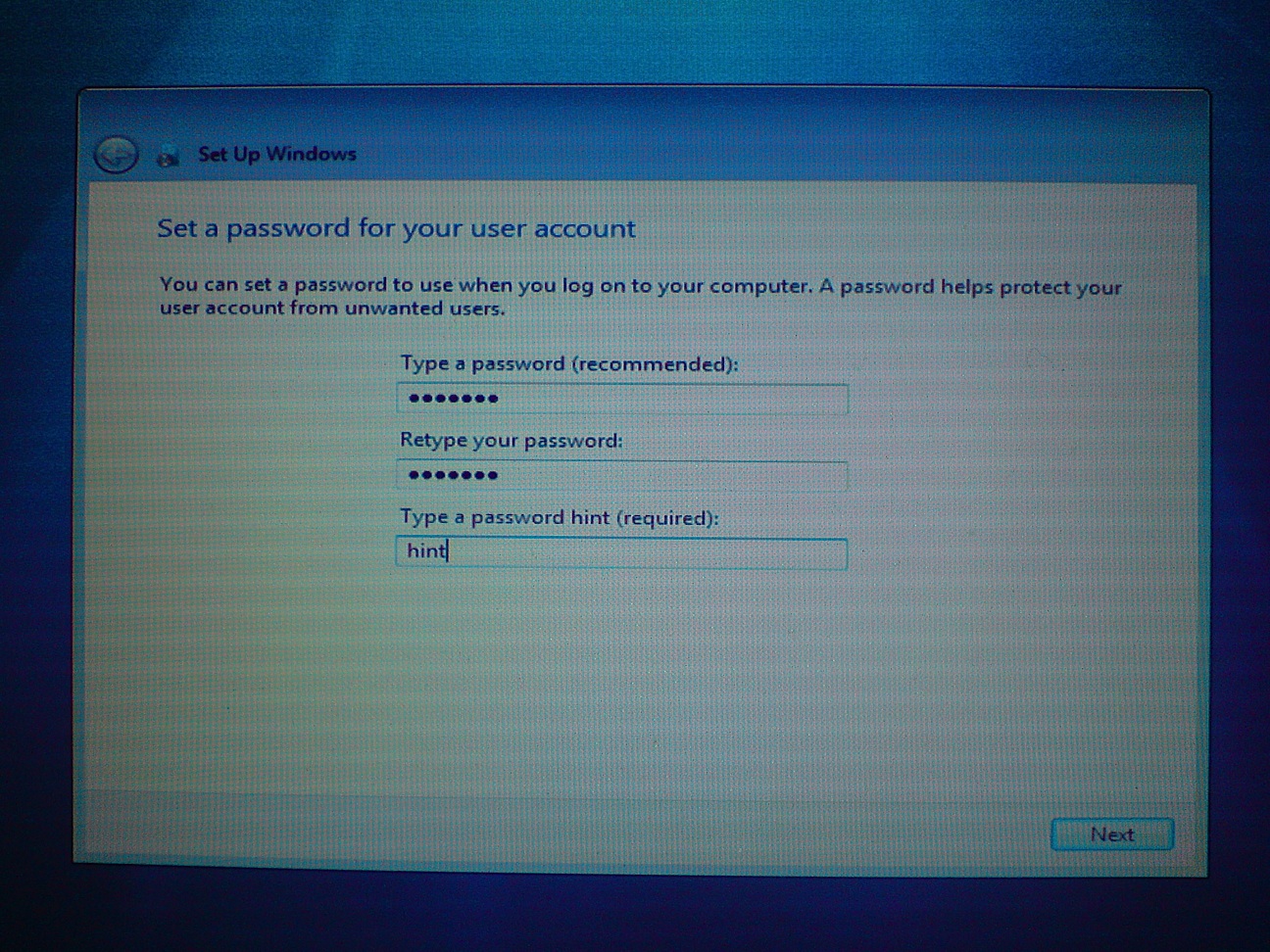
Step Fifteen
You will then be asked to set a password to use when you log on to your computer. Type in your desired password, retype it to confirm, and enter a hint to be used if you forget the password. Click the Next button to continue.


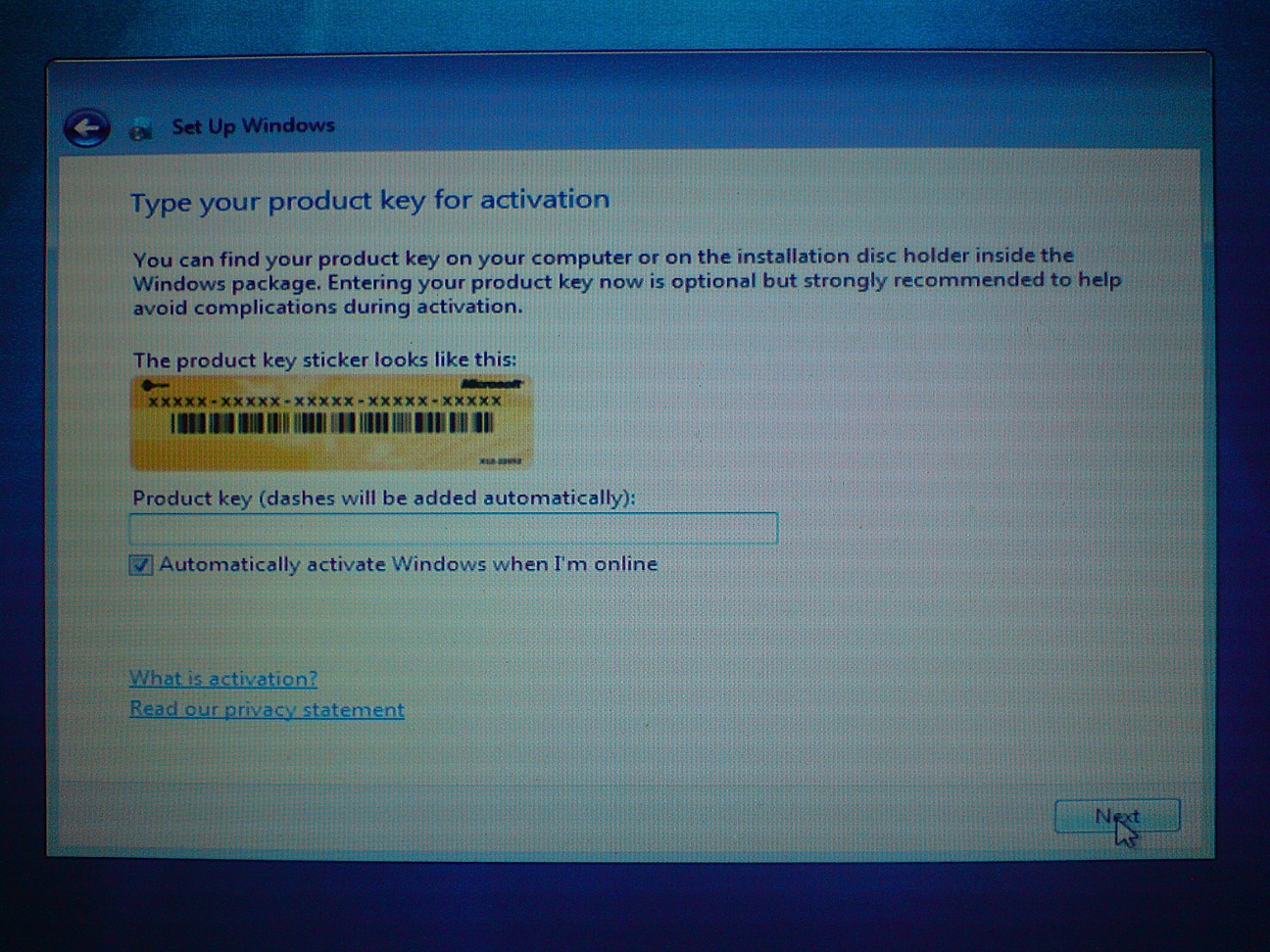
Step Sixteen
Windows 7 Setup will now ask for your product key. Input the key then click the Next button to continue.


Step Eighteen
Windows will now ask you to select your preference in regards to its updates, security, and online assistance. Select Use recommended settings unless you are an advanced user and understand how to manage the system on your own.


Step Nineteen
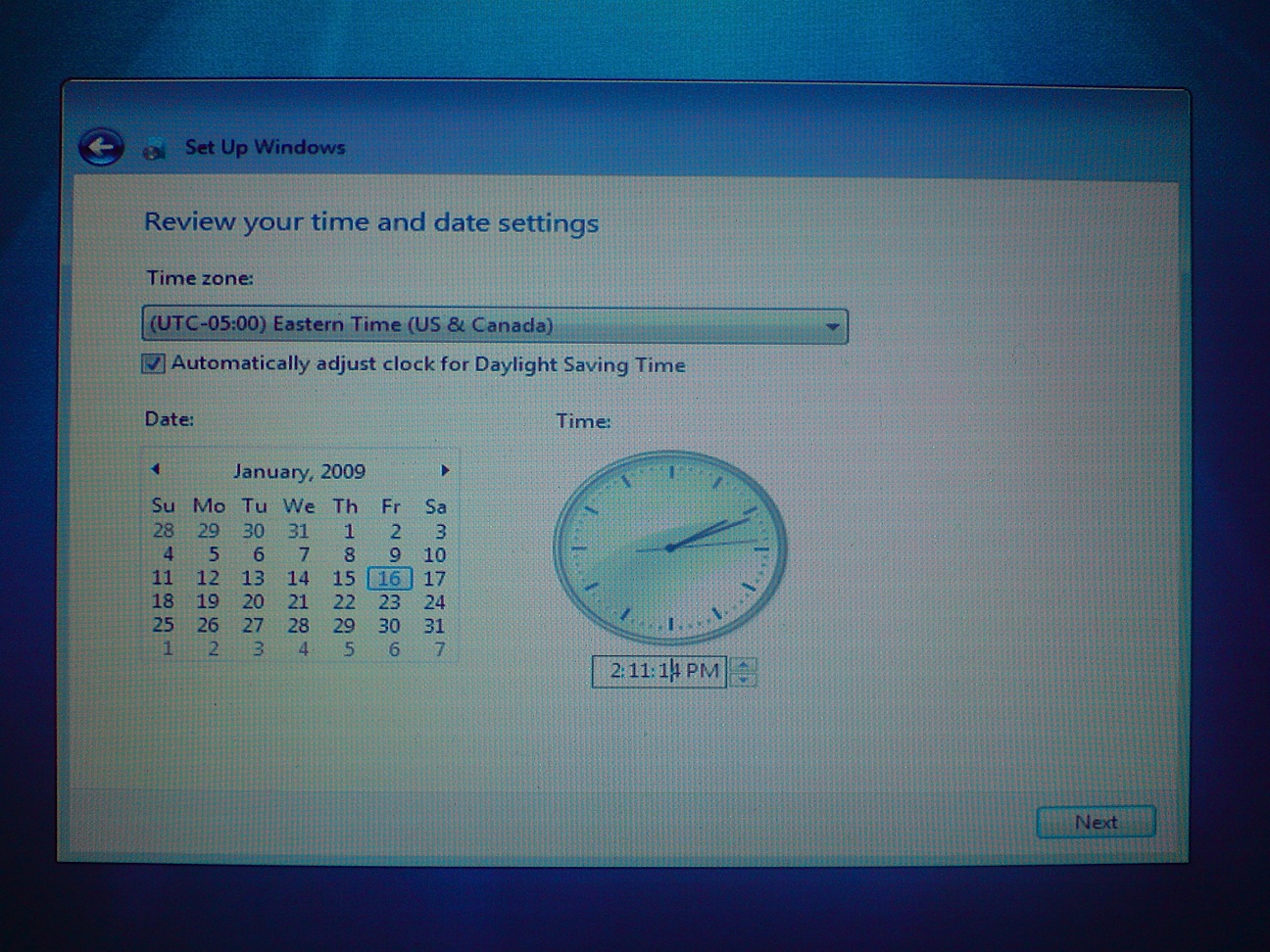
Review your time and date settings to make sure they are correct, then click the Next button to continue.


Step Twenty
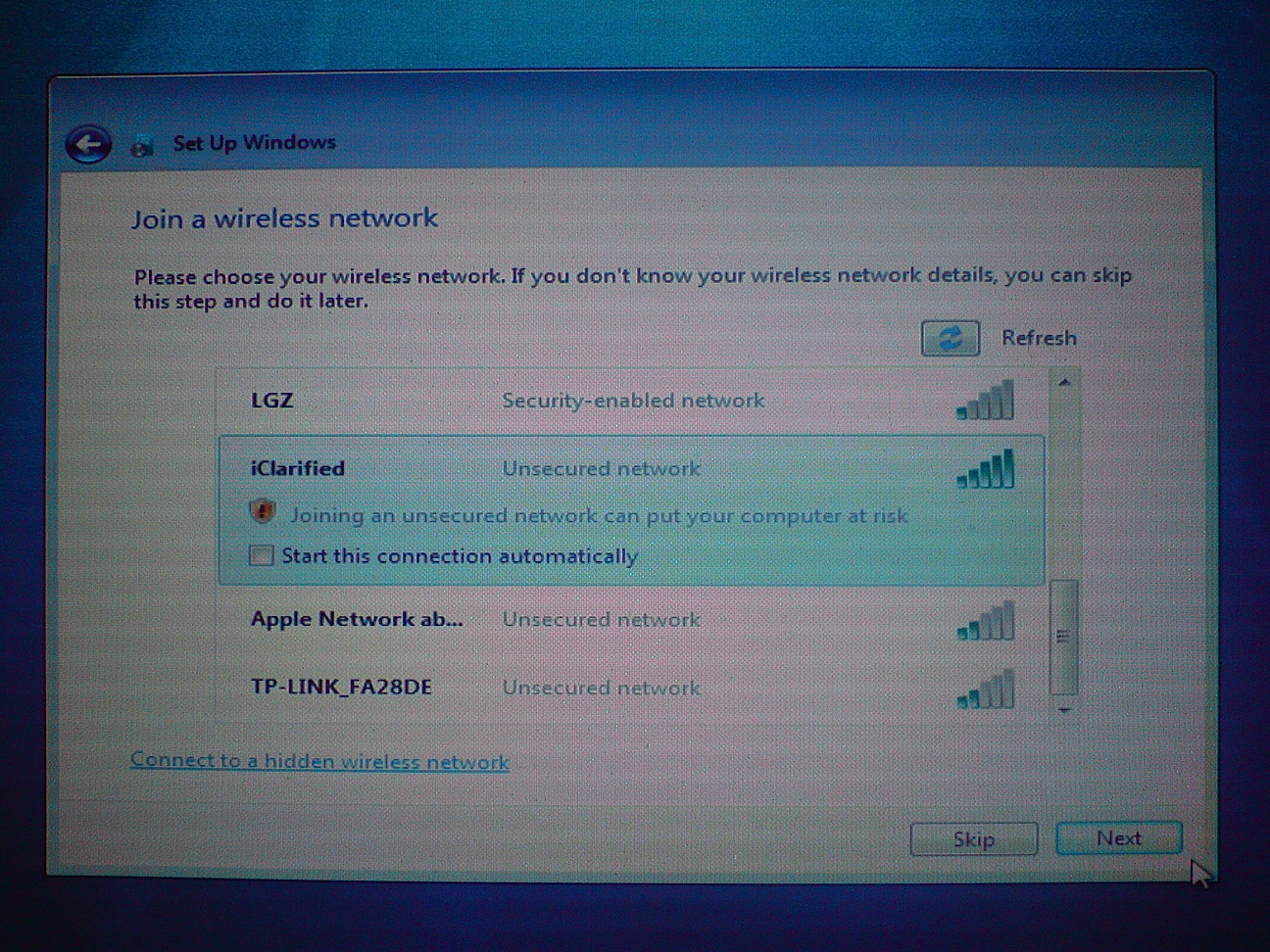
You will be asked to join a wireless network. Select your wireless network from the list that appears then click theNext button. If you do not wish to set up a wireless network you may click the Skip button.


Step Twenty One
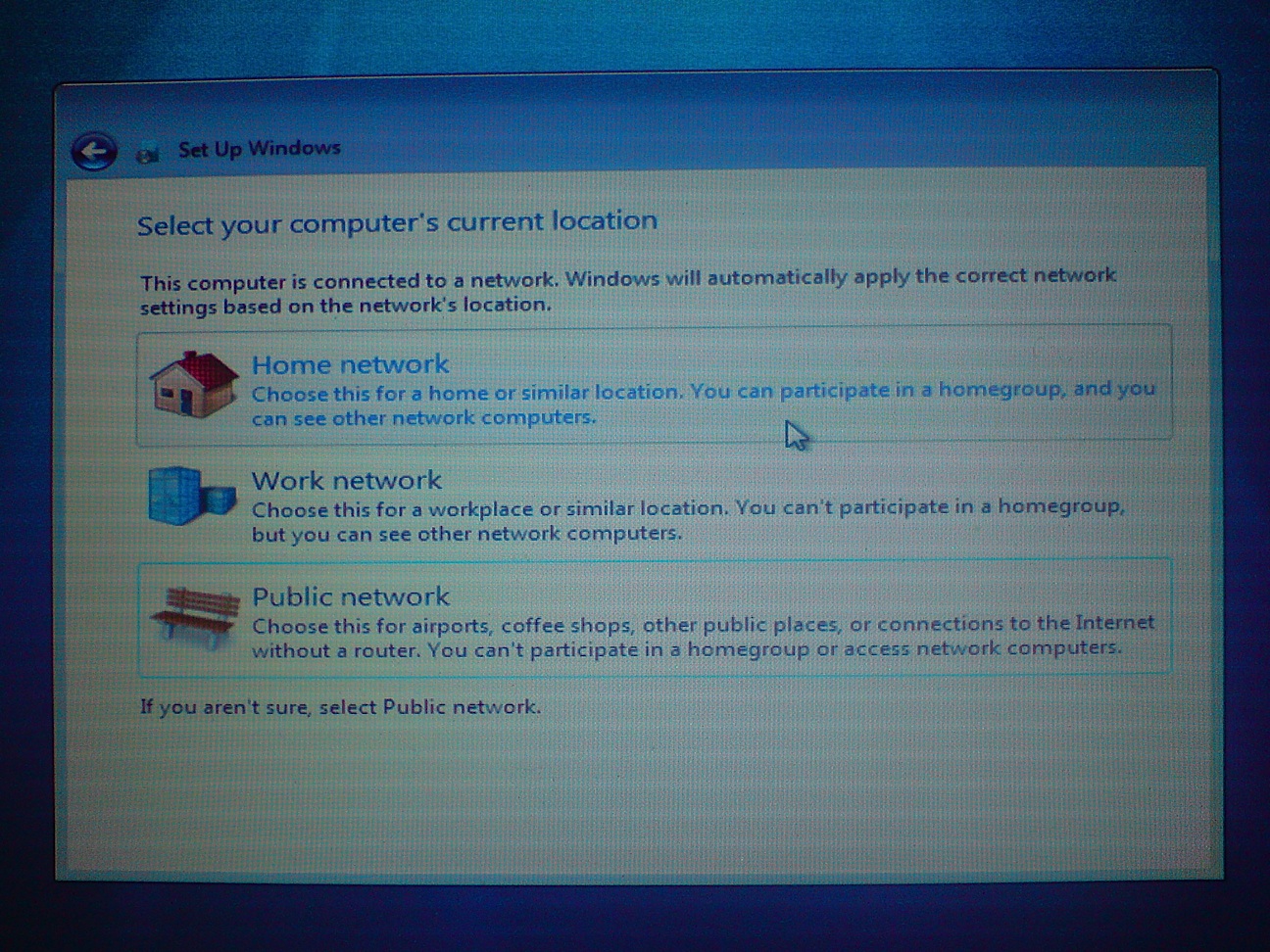
Windows 7 Setup will ask you to select your computer's current location. Click the appropriate option.


Step Twenty Two
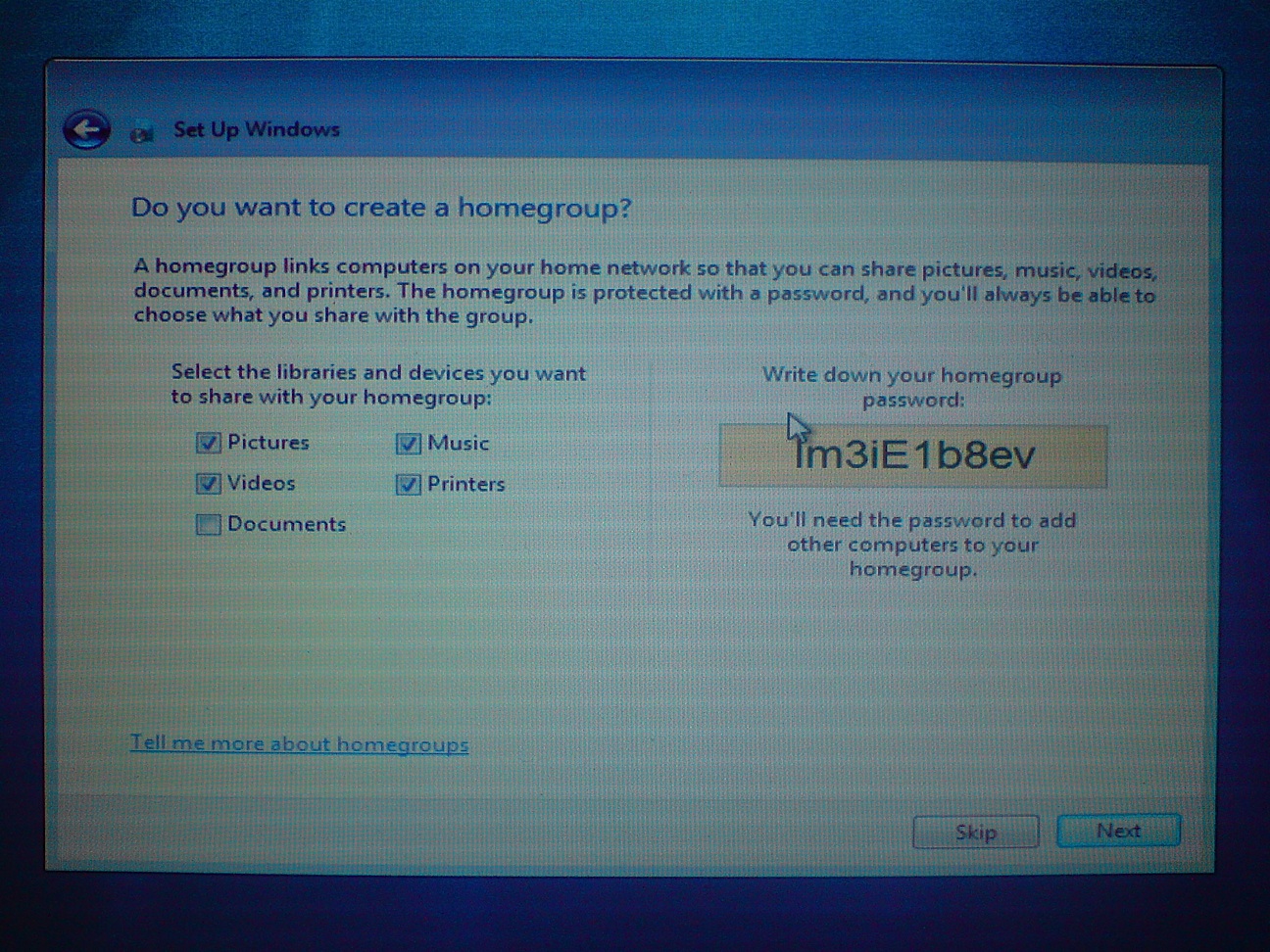
Since I select Home in the previous step, Windows asks if I would like to create a homegroup. A homegroup links computers on your home network so that you can share devices and files. Click the Next button if you would like to create a homegroup; otherwise, click the Skip button.


Step Twenty Three
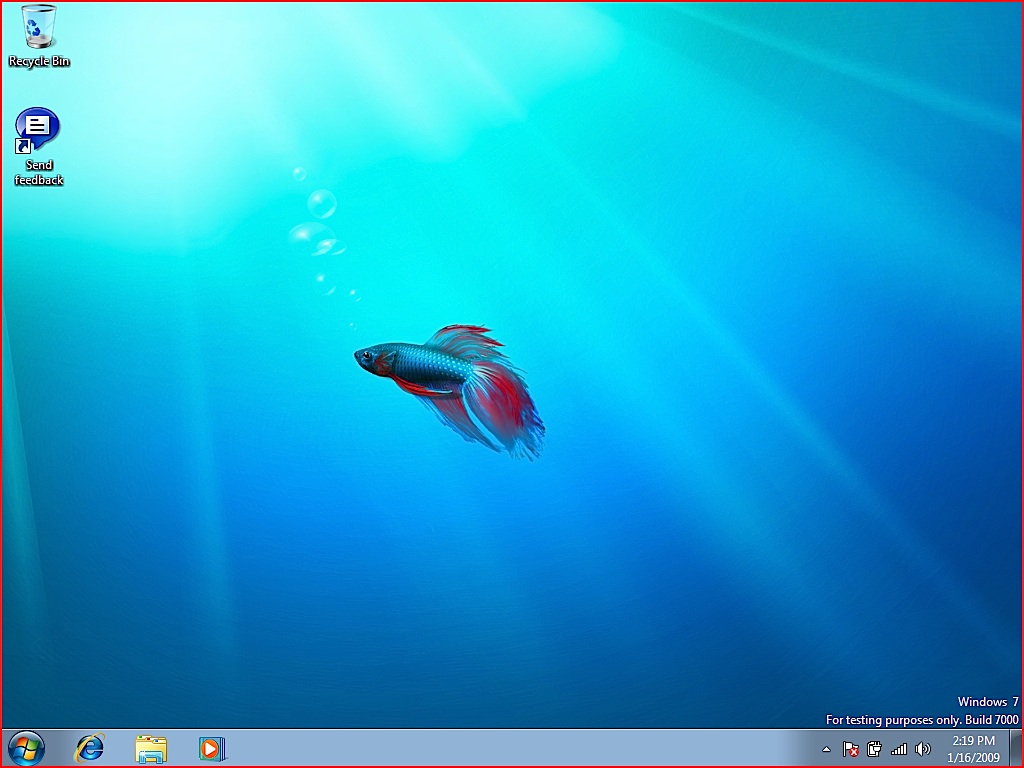
Windows 7 will now open to the Desktop.


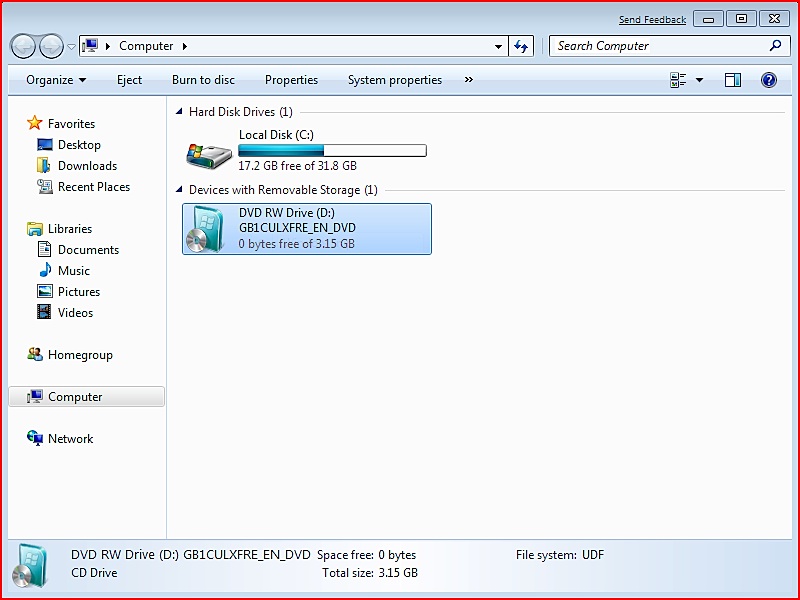
Click on the Windows button at the bottom left then click Computer. Select your DVD drive from the visible devices then click the Eject button in the toolbar.


Step Twenty Four
Insert your Mac OS X Installation DVD and run the setup.exe file.


Note*: If you have installed the 64 bit version of Windows 7 then insert and run a DVD that contains BootCamp 2.1 for Windows Vista 64 bit (BCUpdateVista64.exe).

Step Twenty Five
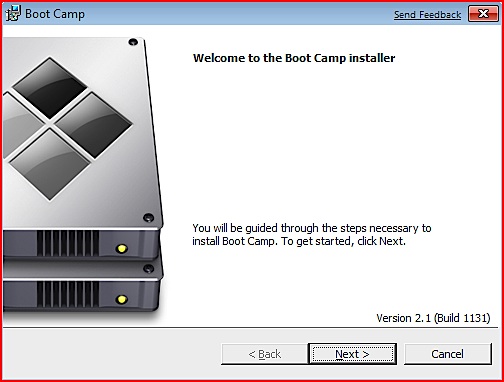
The Boot Camp Installer will appear to guide you through the steps necessary to install Boot Camp. Click the Next button to get started.


Step Twenty Six
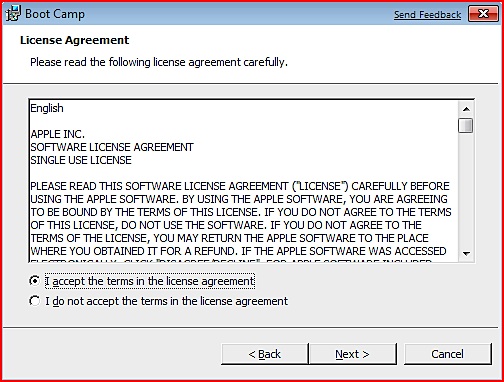
Read the license agreement, select I accept the terms in the license agreement, then click the Next button to continue.


Step Twenty Seven
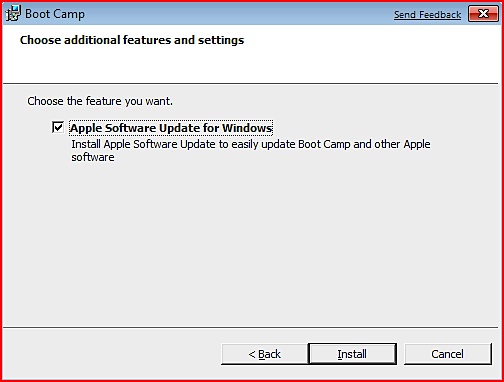
Choose whether you would like to install Apple Software Update for Windows then click the Install button.


Step Twenty Eight
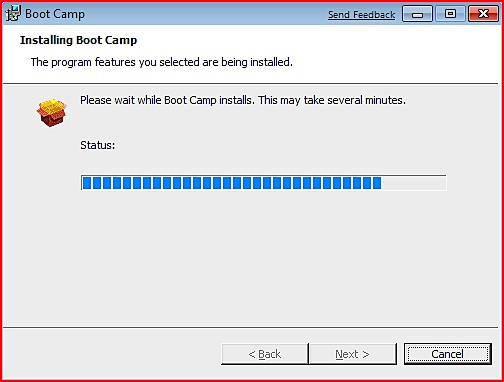
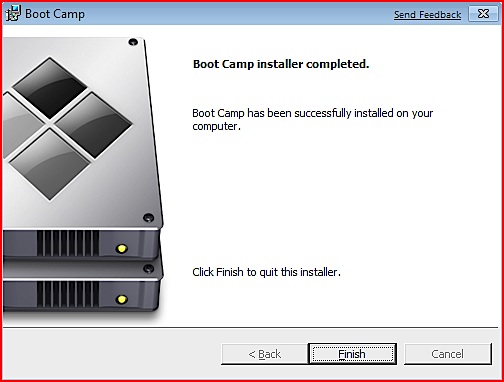
Boot Camp will proceed to install the drivers necessary for your Mac to work properly with Windows.


When the installation has completed click the Finish button.


You will then be prompted to restart your system for the configuration changes to take effect. Click the Yes button.


Step Twenty Nine
Once your system has restarted you will have successfully installed Windows 7 on your Mac using Boot Camp.

Notice that now your screen resolution will have improved and you should have all your drivers working properly!

HOW TO USE WINSCP ON IPHONE

So, what’s SSH?

The first thing you would like to know is what SSH is. SSH is commonly used in Unix/Linux environment. You can use SSH to access a remote a computer and execute commands from another machine that may be miles away. Additionally, you can use it to transfer files to the remote computer. I’m not going to dig deep and throw out all the technical details about SSH. But just remember, SSH is a tool that lets you access machine or devices remotely. Here, the device is your iPhone.

Installing SSH on iPhone

You may be curious why you can use SSH on iPhone. Is SSH just designed for Unix? That’s a good question. You may not know the iPhone OS is a stripped-down version of mac, which is actually riding on Unix as its core. So, that’s why you can use SSH on iPhone.

But officially, Apple didn’t bundle the utility for every iPhone user and thanks to the jailbreak community to bring SSH to iPhone. As long as your iPhone is jailbroken, you can install and use SSH on iPhone.

To use SSH after jailbreak, you can go up to Cydia and search for “OpenSSH” to find the package. Tap the Install button to install it on your iPhone. Once installed, restart your iPhone. You’ll not find an icon for SSH on the home screen. But after restart, the SSH tool will be automatically launched and listens for remote request in background.

OpenSSH in Cydia

Note: Did you set the auto-lock? Your iPhone should be turned on during the SSH file transfer. So, if you have configured auto-lock, I suggest you to disable it before using SSH. You can go to Settings -> General -> Auto-Lock and set it to Never.

How to Transfer File Using SSH

Okay, here comes to the core part of this guide. How can you transfer file to & from iPhone remotely with WiFi? Now, your iPhone is already enabled with SSH and listens for incoming SSH request. Before you can transfer file from your computer to iPhone, you have to know the IP address of your iPhone.

To check for the IP address, go to “Settings” -> “Wi-Fi”. Tap on the connected WiFi network and view the details. You’ll see the IP address of your iPhone. Say, for my case, the IP address is 10.0.1.5.

iPhone WiFi IP Address

Once you know the IP address, the next step is to connect to iPhone from your PC or Mac.

For Windows User
For Windows users, I highly recommend you to download WinSCP, which is a free SSH client for Win XP/Vista. You can download it for free from here.

Once complete the installation, launch WinSCP and click “New” to connect to iPhone. In host name, type in the IP address of your iPhone. For user name and password, you can use “root” and “alpine” respectively. Keep other fields unchanged. You can then click “Login” to start making connection with your iPhone. Click “Yes” if you’re prompted with a warning to add the host key to cache.

Tip: Instead of clicking “Login” directly, you can click “Save…” to save the connection profile for future use

WinSCP - New Connection

WinSCP - SSH Prompt

When connected, you’ll see the files in iPhone file system. And, you can easily transfer files between iPhone and computer by just drag & drop the files in WinSCP.

WinSCP - Connected with iPhone